Blue Screen of Death – get to know in details

All regular Windows users must have experienced the BSoD at some time or the other, while working on their systems. It is the infamous Windows Stop Error, caused by some fatal error in windows operating system. Unlike an application crash, the blue screen makes the whole system dysfunctional. Although this fault is much lower in the higher version systems, the error occurs whenever Windows senses any hardware, software or driver error which does not allow it to functional normally.

In most instances, the problem resolves itself with just a reboot. However, this issue generally causes more technical snags which if not resolved quickly, may harm your data.

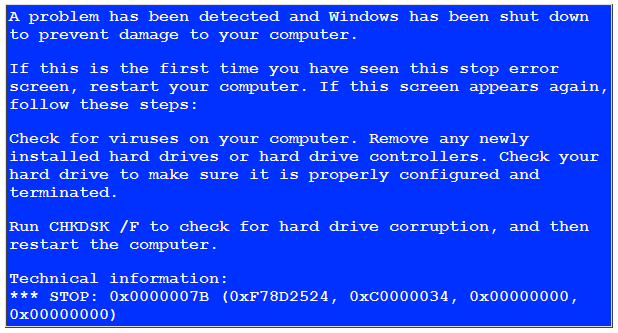
stop-error-7b
What is BSoD?
The term was coined during the testing of OS/2 for pre-release activities. Whenever the developers tried to send API calls or put in dereference null pointers in applications, the system stopped and displayed the blue screen. This led to the formulation of the term. The Windows Stop Message occurs whenever the operating system detects an error from which it cannot revert back. This causes the operating system to halt and display diagnostic issues on a blue screen. In higher versions, the contents of the memory are dumped into a mini-dump file which can be analysed later.

Understanding the blue screen
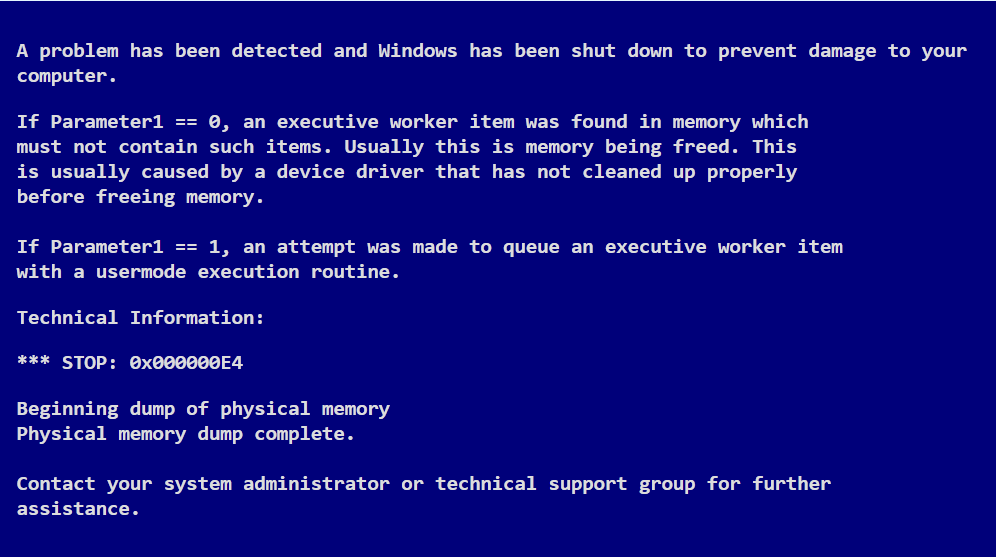
A typical blue screen is divided into four parts and can be analysed to understand what led to the appearance of the blue screen.
1. The first part is the bug check information which shows the instance of the stop error in hexadecimal format. It also shows why the system has stopped and displays the name of the error.
2. The second section or the user action system is quite generic and it contains advice on the plausible troubleshooting steps.
3. The third section contains the driver information. It contains critical information about drivers. If any driver is misbehaving and causing the blue screen, then it will be listed in this column. In case of recurring errors, this can allow the user to take necessary actions.
4. The last but not the least part of the error screen are the status information and debug port sections.

In higher versions of Windows, the system creates a mini-dump file. This stores the PC’s memory into a file and saves it on the disk. This can be used by the user to analyse more on blue screen of death.
How to fix blue screen of death- some feasible options

Introduction:
Are you currently worried about the blue screen death that occurred on your computer? You don’t have to panic, because it’s a very common computer problem with windows operating system. It may happen that, while you’re surfing on the web and your screen all of a sudden vanishes along with a screen error message appears before you. If you want to get rid of this error forever, you can use the following tips by yourself to learn how to fix your screen problems.

bluescreen4

Essential tips to resolve your screen problems:
You can use these effective tips to get rid of your screen problems.

• When the users see the screen error, they should carefully study the note that appears on the screen. Usually, the faulty screen carries a ‘STOP ERROR’ code that takes numbers and alphabets. The code depends over the problems that have caused by the screen error. So, the first thing user need to do is create an error code note that has been displayed.

• You can uninstall any programs that are causing any screen problems. If the system is showing the screen error just after installation of a hardware device or software, user can simply try to uninstall the hardware device or software and see, is the issue resolved. After uninstalling the software that creates the issue, user can execute a virus scan on their PC.Repairing of registry errors can help in getting rid of screen errors that are caused by software by making use of registry applications. On the other hand, user can also try the System Restore option to go back to a date when the system was working perfectly fine

• The user has to try their level best to contact the desktop. User can try by going into the Safe Mode. User can try this option simply by pressing the F8 key just before the emergence of the Windows loading computer screen. If the user does it properly, then the user will monitor the ‘Windows Advanced Options Menu’ display where the user will find Safe Mode, Safe Mode with networking options.

Conclusion:
Whenever your PC slows down, opening of recent programs or files, surfing on the web and screen errors, it’s mostly that the windows registry has incalculable information which needs to undergo. Thus, it’s sincerely suggested you to definitely download and install an excellent registry scanner to repair the registry errors and accelerate your computer. Truly anybody can fix the problem of blue screen of death (BSOD) by having an affordable registry scanner.

BSOD – know various important things about it

The blue screen of doom or BSOD as it is called pops up when Microsoft windows encounter a catastrophic error leading to crashing of the system .The computer requires a reboot to begin functioning again. The BSOD can be the result of a software malfunction or a faulty hardware. BSOD resulted in loss of data as the programs did not have a chance to save their open data and it led to wastage of time.

Causes of Stop Error
Blue screen of doom also known as stop error generally occurs when there are issues with your computer hardware devices. A software problem would not cause stop error problems as it would only crash the application, but a hardware issues can bring the computer down. As subsequent testing showed, the main cause of crashes was the device drivers.

WORKER_INVALID
What are Device drivers?
Device drivers are the codes that allow the windows operating system to handle, operate, and control hardware devices like sound card, video card. The device drivers make it easier for the operating system to handle commands between the kernel of the operating system and the device Drivers can be particularly tough to debug as it is not written by the core team of Microsoft personnel nor are the coding for device driver an open source. This sometimes leads to conflicts between the device and the operating system, resulting in the fatal error. Microsoft found out that stop error occurred in three ways:

Drivers breaking APIs that handle the communication between the core of the windows operating system and devices. The incorrect allocation of memory for data structures as needed by the driver. The other common error that led to stop error was the infinite loop. To circumvent the recurrence of BSOD, windows have implemented a few sets of built in software’s called Slam, Slayer, and terminator. These three software’s directly deal with the three problems mentioned above.

Trouble shooting
There are three quick ways to resolve the conflict.
• First, diagnose the problem: Check to see whether you have installed /changed anything recently. Determine the internal hardware of the computer. Check the ram, your computer’s temperature.
• Second, analyze the reason for the crash by obtaining information from minidumps.
• Third, fix the problem by booting in safe mode.
Sometimes viruses or malware can be the root of the problem, run antivirus software to eliminate virus infection as probable cause.

Repair the installation of windows to eliminate the threat of corrupted software. Roll back device drivers, windows updates as sometimes the updated software tend to conflict with the device drivers.

In recent times, the display of blue screen of death has become a rare occurrence as the software companies have become stringent with their debugging techniques, hopefully in not so distant future, we may never get to see the fatal screen at all